Genetec SharpV — Setup Guide
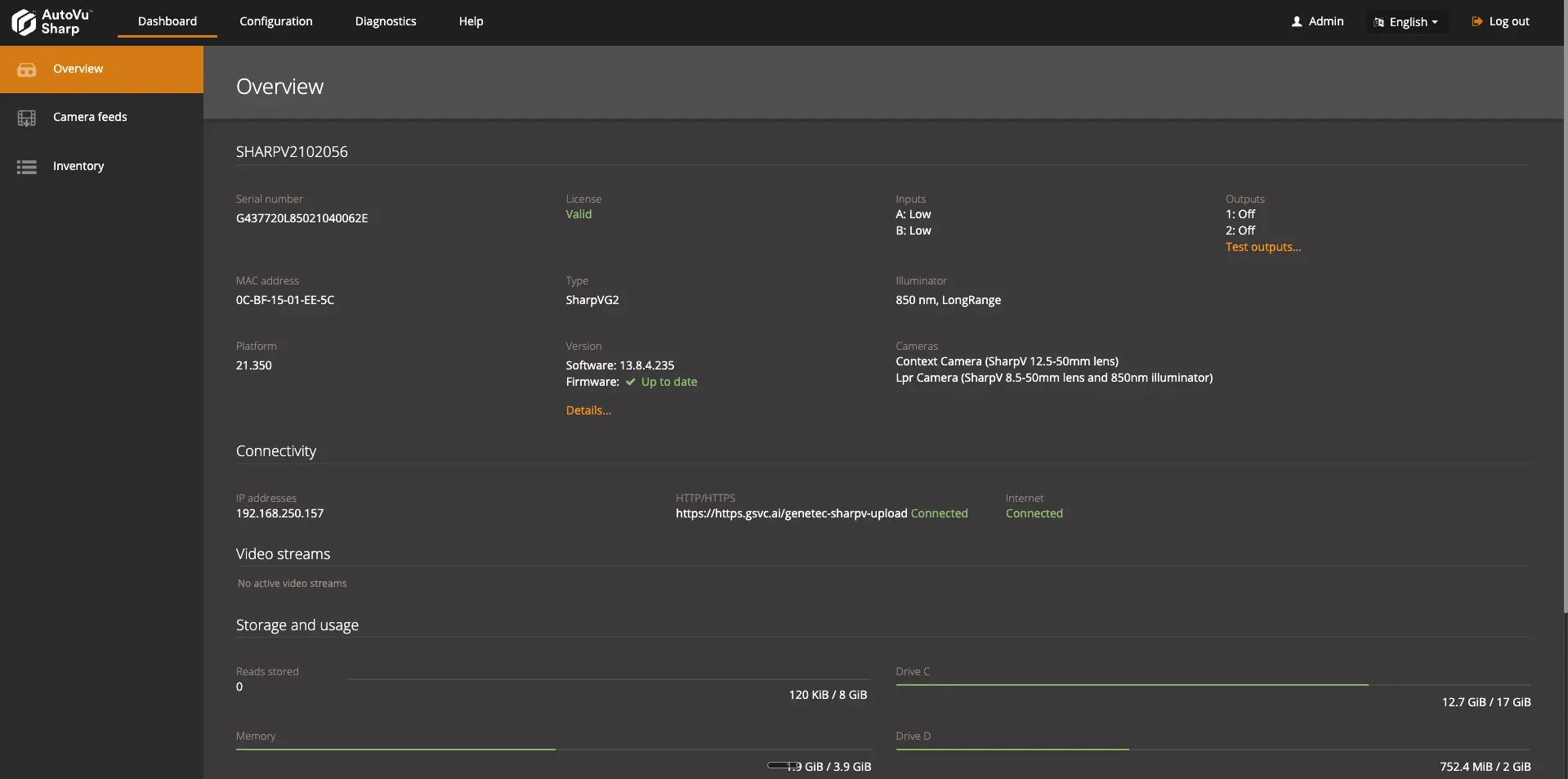
These instructions guide you through configuring your camera to securely send images to Beacon using HTTP.
Prerequisites
Before you begin, make sure you have:
- Access to your camera web interface
- Your Camera Endpoint Username and Password from the Beacon dashboard
- Your device name or manual device ID from Beacon
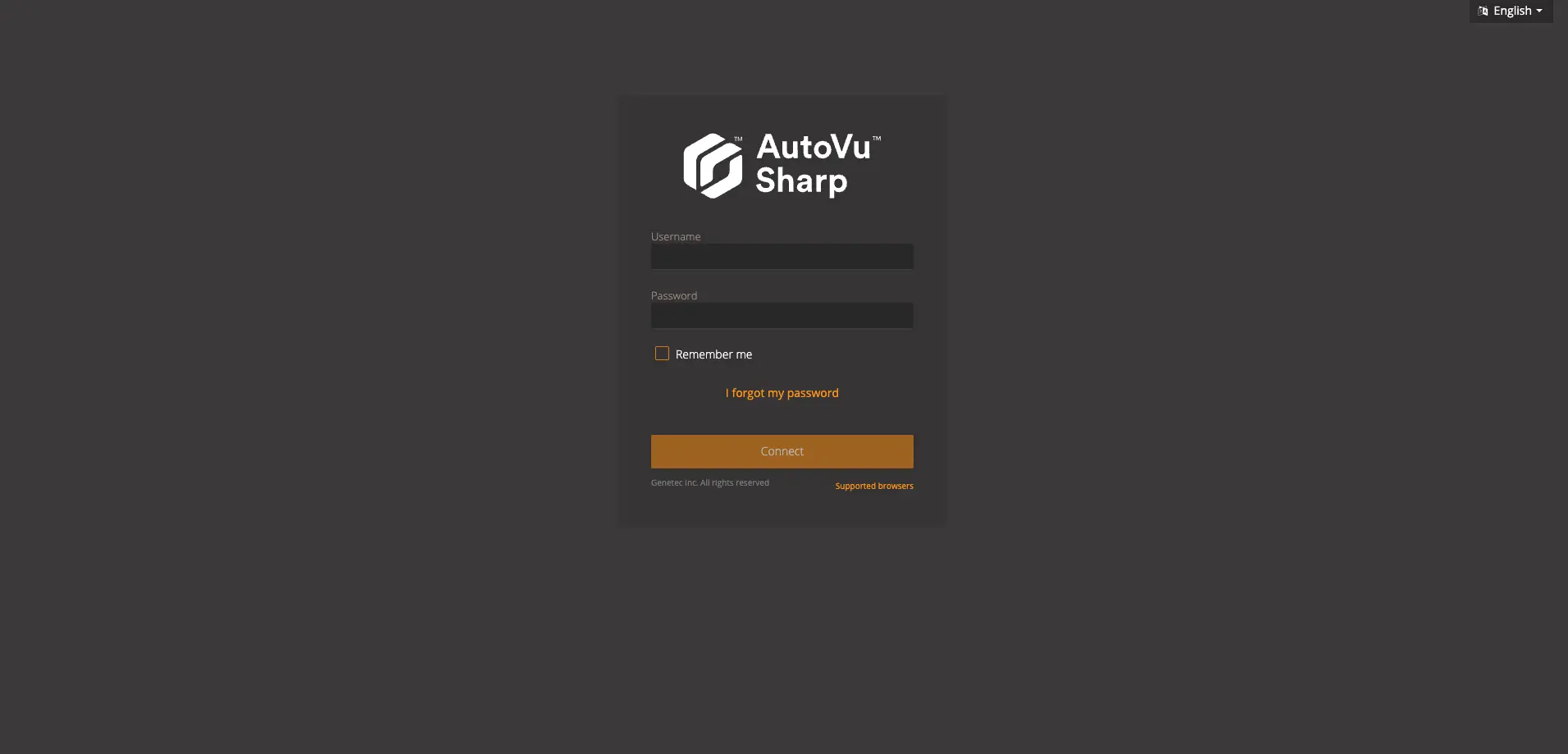
Step 1: Log in to the camera
- Log in to your camera through its web interface.
Step 2: Navigate to Extensions
- Select Configuration
- Select Connectivity
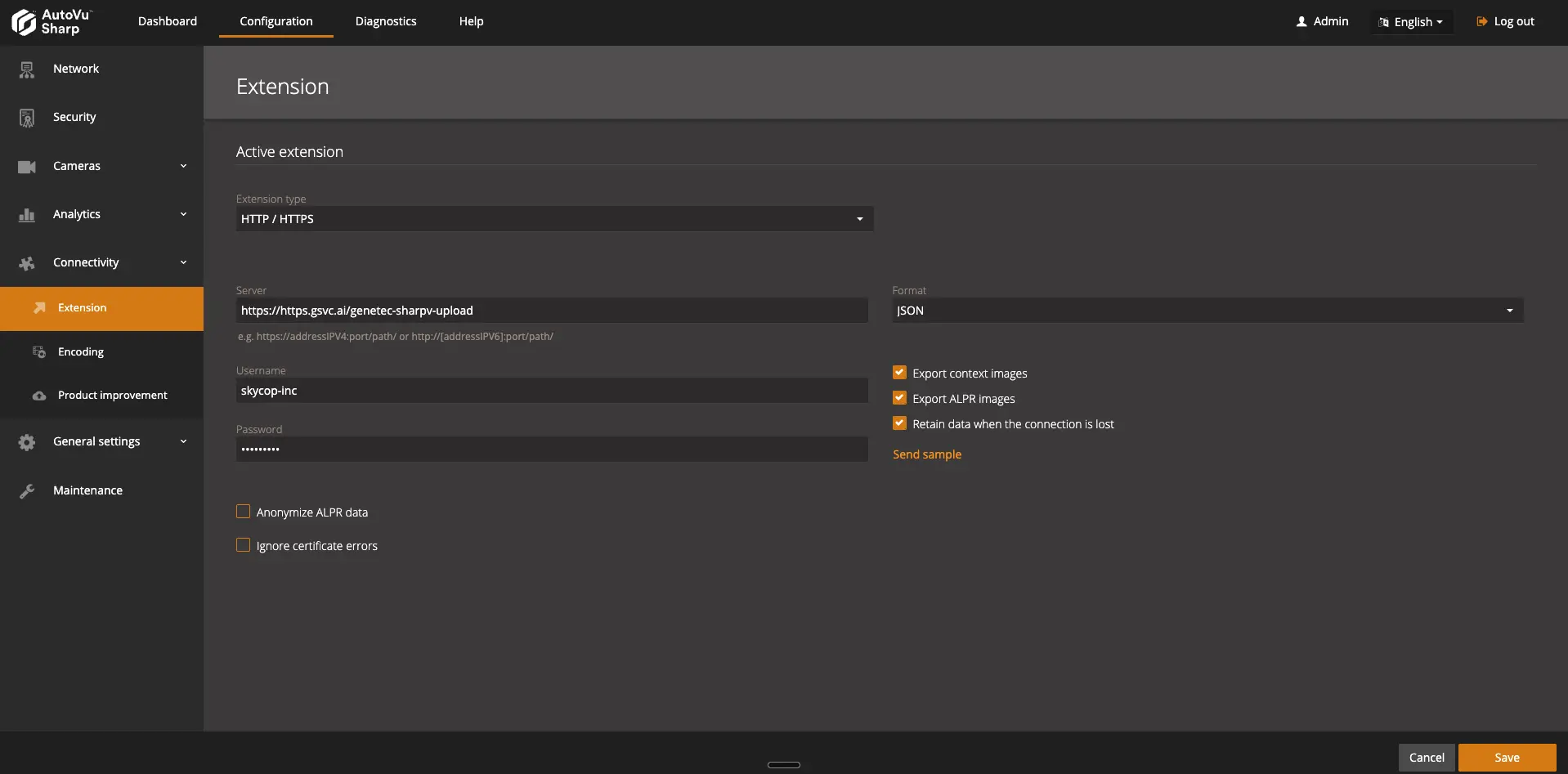
- Select Extension
Step 3: Configure the Settings to match the ones below
- Extension type - HTTP / HTTPS
- Server - https://https.gsvc.ai/genetec-sharpv-upload
- Format - JSON
- Enter Username and Password - Can be found under the customer in Beacon SVC or under settings on the Organization tab in Beacon SVC